Glim how-to videos: making a film, step by step
Glim turns photos of the people you love into a short animated film. These videos show how it's done in the app, one step after another. Each is under a minute, silent and captioned, and the animations you see in them were made with AI from example photos.
Adding your photos
Example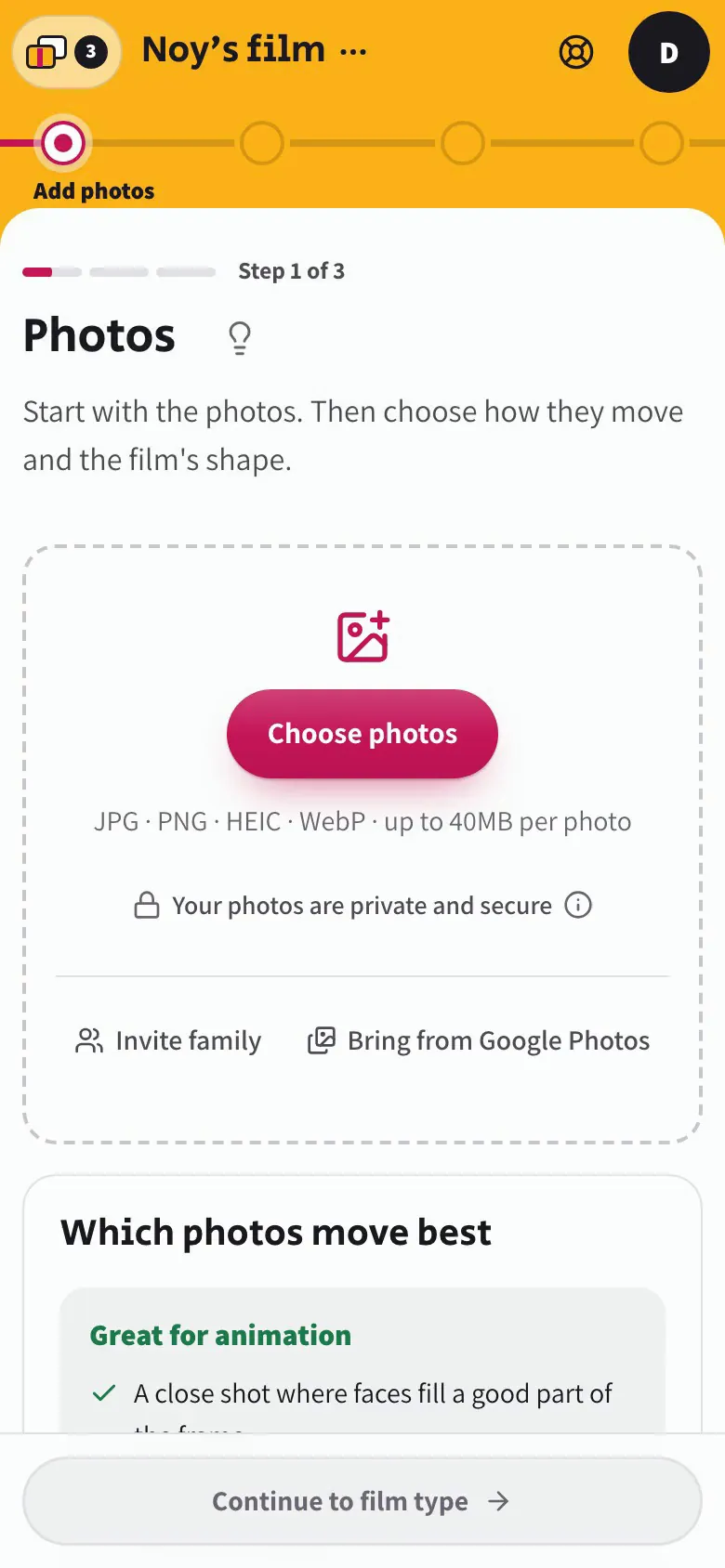
Start a new film, name it and choose your photos. Each one uploads and gets a quick check, and you can ask the family to send theirs with a link.
What it says
- Start a new film and give it a name
- Choose the photos you want in the film
- Each photo comes in and gets a quick check
- You can also ask the family to send photos
- Your photos are in, ready for the next step
Ordering and framing your photos
Example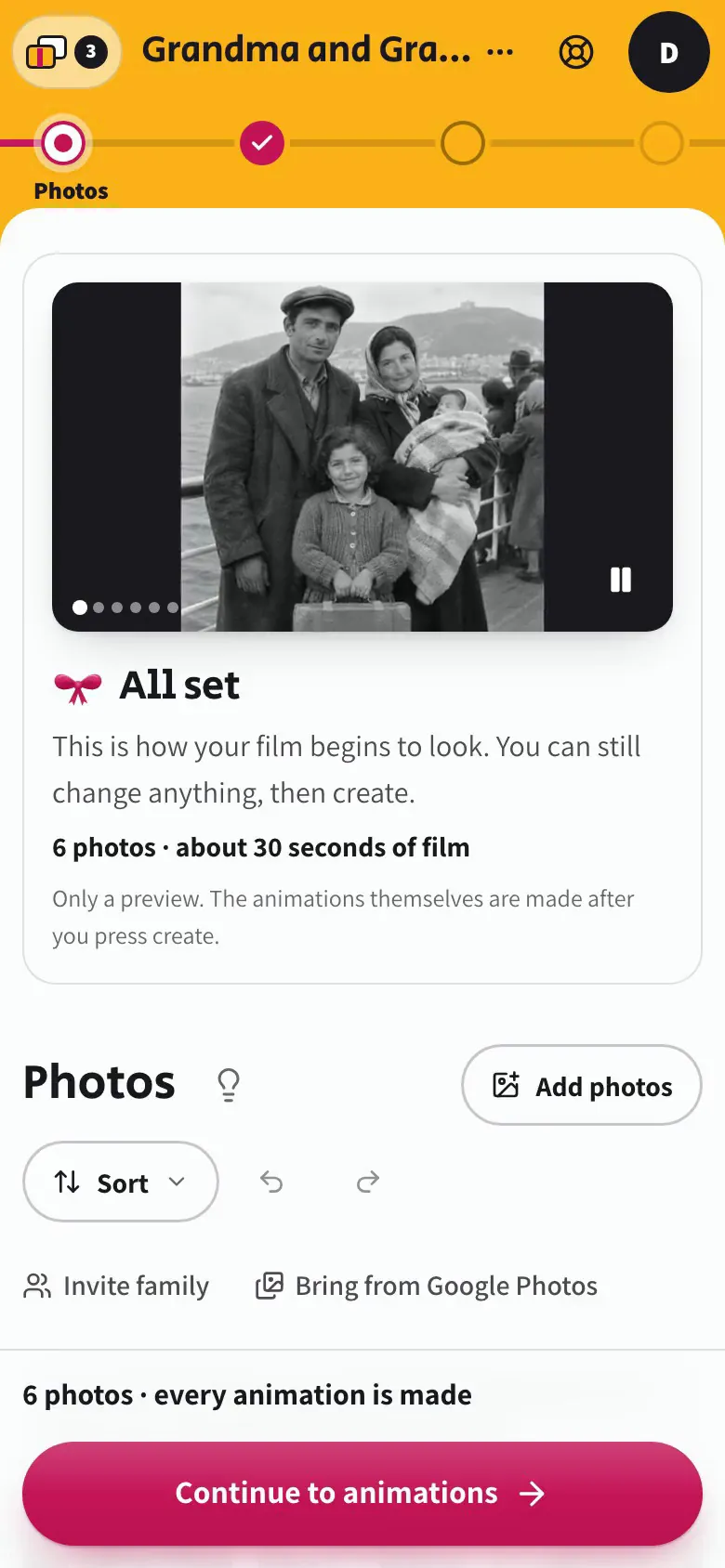
On the Photos step you set the order: type a number, or sort them all at once, and Undo takes it back. Then open a photo and adjust its crop.
What it says
- On the Photos step, you set the order
- Type a new number to move a photo
- Or sort them all at once from the sort menu
- Undo brings the old order back
- Open a photo to see it up close
- In the crop, choose what stays in the frame
- Save, and that's it
Choosing the move between photos
Example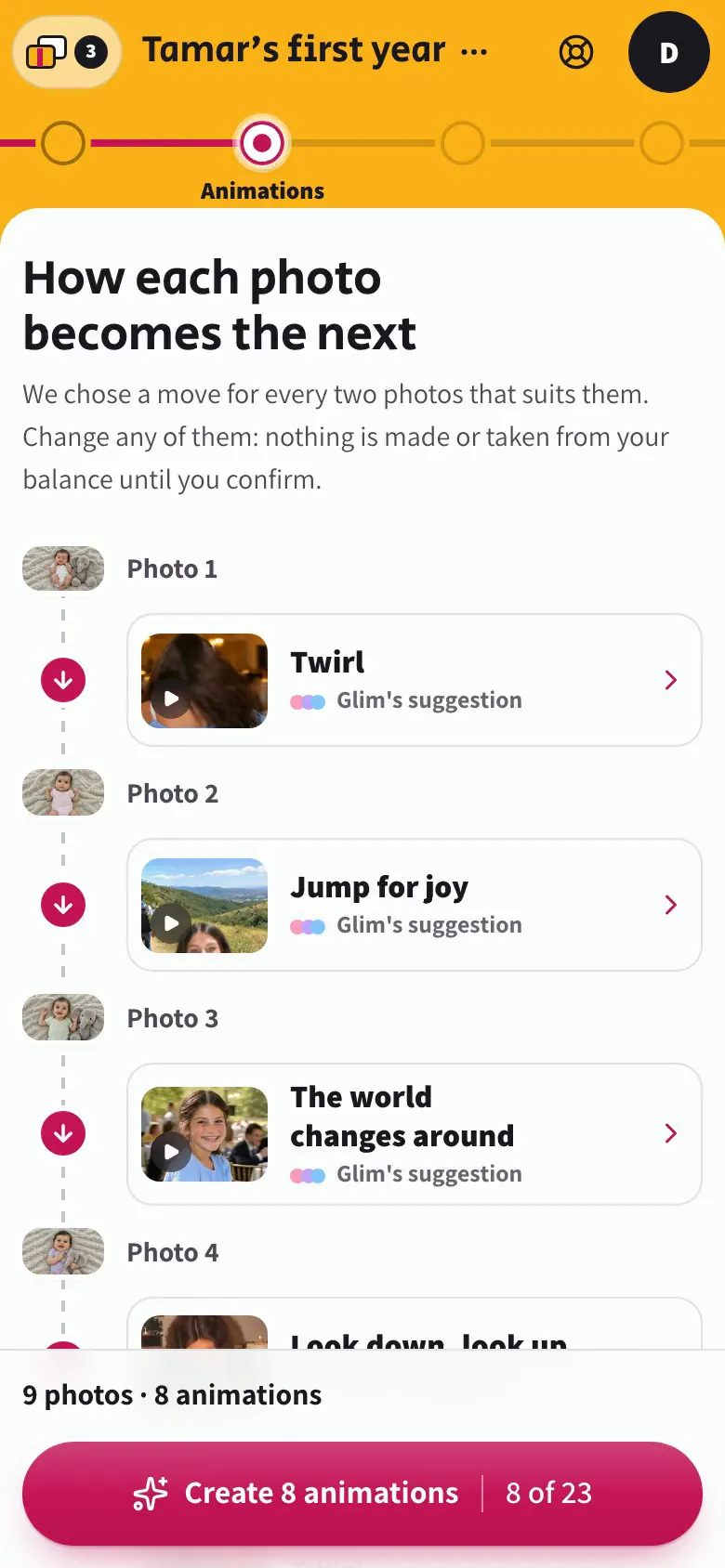
In a Life Story, Glim suggests a move for every two photos. Open one, watch each option play, choose, and create the animations when you're ready.
What it says
- In a Life Story, a move carries each photo into the next
- Glim suggests a move for every pair
- Open one to see all the options
- Each tile shows how the move looks
- Choose it, and the card marks it as your choice
- When you're ready, create them from the bar below
Watching your animations, and free retries
Example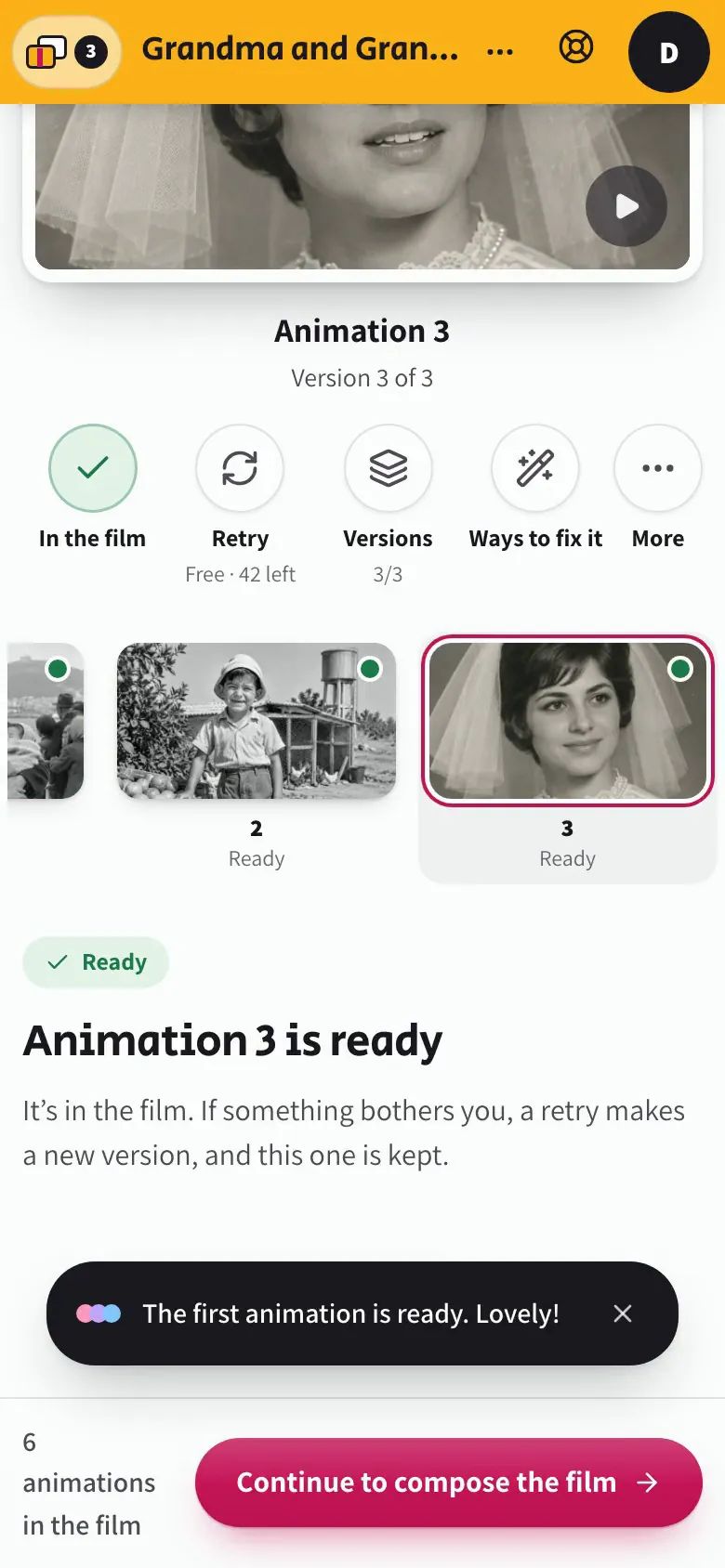
Watch each animation on the Animations step. If one isn't right, try again for free, automatically or in your own words, or leave it out of the film.
What it says
- On the Animations step, watch each one
- Not quite right? Try again, free
- An automatic retry, or one you customise
- Cancel closes it, and nothing changes
- You can also leave an animation out of the film
- And put it back with a tap
Changing your Life Story chain
Example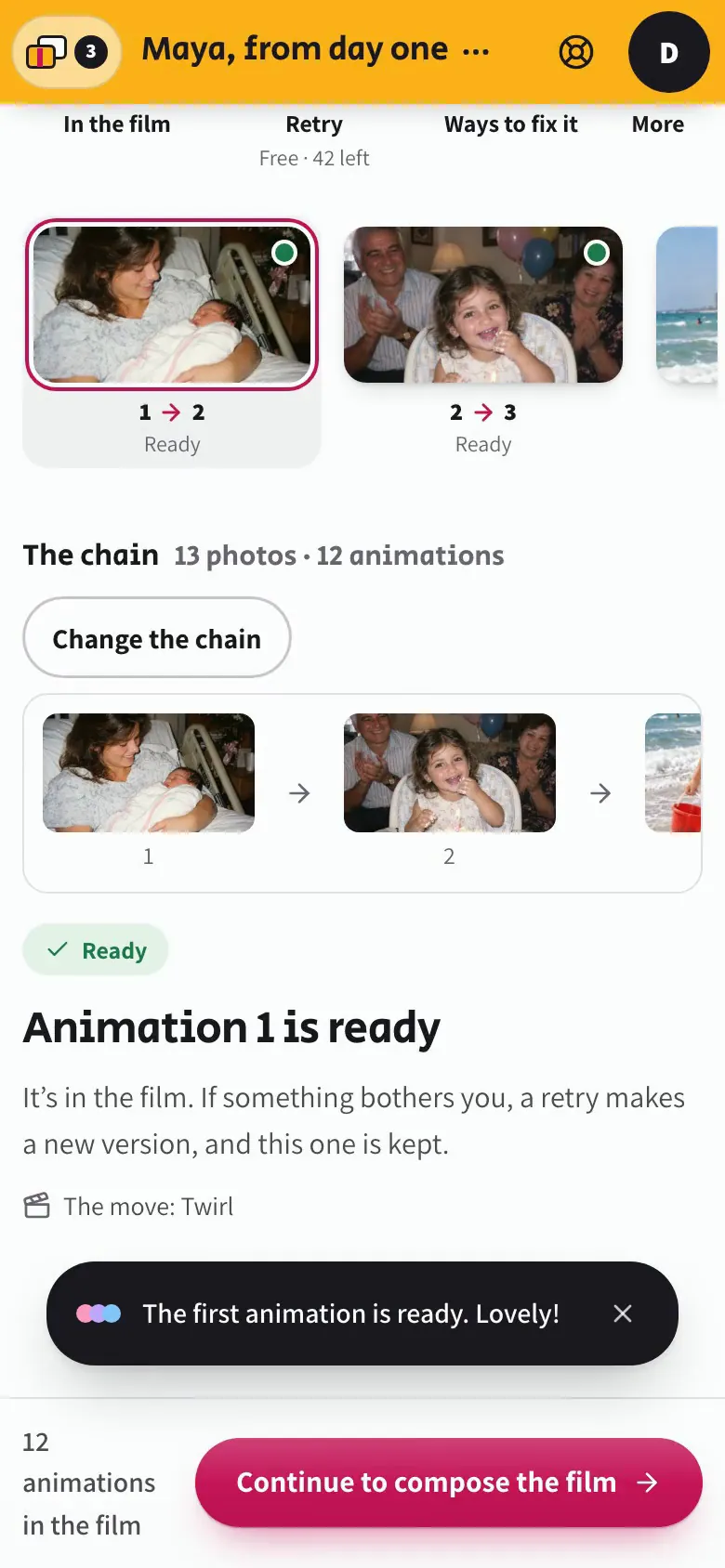
Change a Life Story's chain even after the animations are made: add a photo between two others or take one out, and see what it changes and costs first.
What it says
- In a Life Story, the chain links all the photos
- You can change it even after it's made
- Add a photo between two others
- Or take one out and join its neighbours
- You see what changes, and what it costs, first
- Cancel, and the chain stays as it is
Putting your film together
Example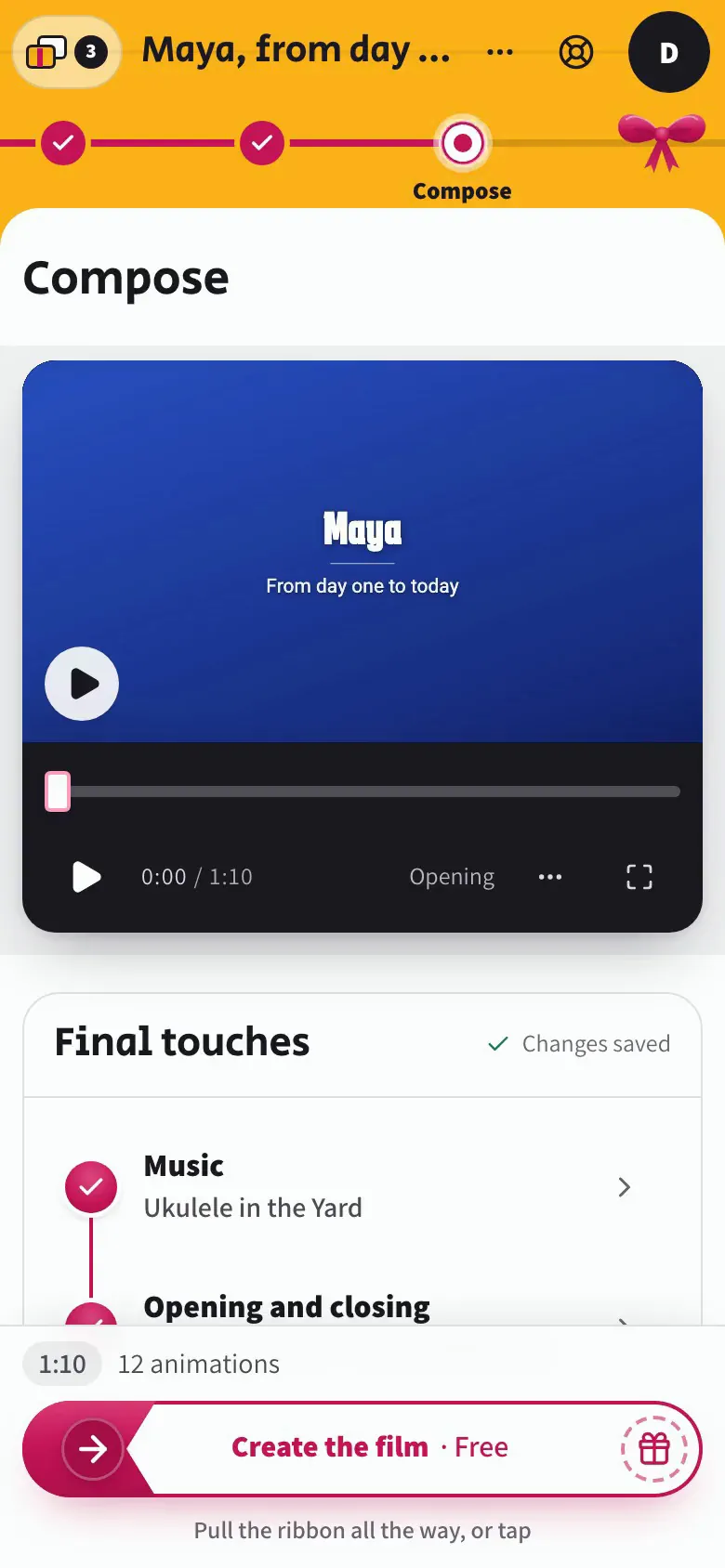
On the Compose step, pick a song, write the words for the opening and closing, add words to the animations, watch the live preview and create the film.
What it says
- In Compose, your film comes together
- Pick a song from the library and hear it with the film
- Type the words for the opening
- And for the closing
- Add words to the animations, or change their order
- The live preview shows your film as you go
- Pull the ribbon all the way, or tap it
- And your film starts being made
Downloading and sharing your film
Example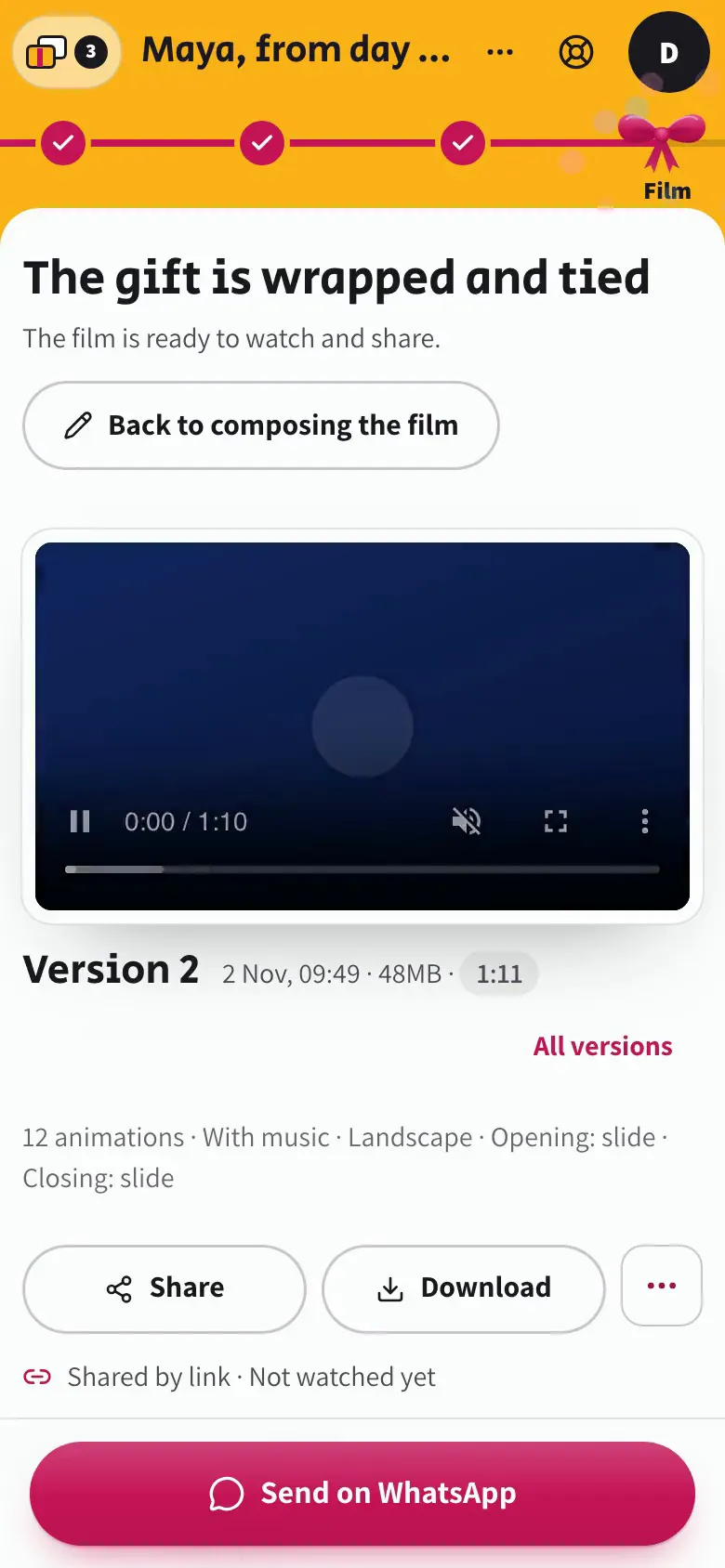
Your finished film waits on the Film step: share it with a link or straight to WhatsApp, or download it to your phone or computer.
What it says
- On the Film step, your finished film is waiting
- Share it with a link, or straight to WhatsApp
- Or download it to your phone or computer
- Close it, and you're back with your film
About these videos
Every video here is a screen recording of the app at phone size, on a demo account with Glim's example photos. The animations and the film you see in them were made with AI from those photos. There's no sound: the captions do the explaining, and every word of them is written out on the page too.
In the app, the same videos open from the round play button beside each part, and from the "Guides" page, which has a written guide for every step too.
Google Photos is a trademark of Google LLC.